
Home / Guides / How to Plan a Film With Claude or ChatGPT
How to Plan a Film With Claude or ChatGPT
An AI assistant can take a lot of the typing out of pre-production. It can tag a script, draft coverage for a scene, group scenes into shoot days and fill in a call sheet. This guide walks through doing that with Claude or ChatGPT on a crewed production: a short, a commercial, a music video or a documentary with a call sheet and a stripboard.
The assistant drafts and the crew decides. Everything below keeps a person in charge of the parts that decide whether a shoot day works, and puts the assistant on the parts that are mostly reading, sorting and filling in forms.
What AI Is Good and Bad At in Prep
Assistants are good at work that is tedious but well defined: tagging every prop in sixty scenes, sorting scenes by location and time of day, turning a breakdown into department to-do lists, drafting a shot list for a dialogue scene from a coverage style you describe, and filling a call sheet from a schedule.
They are weak where the answer depends on things that are not in the script. They do not know that the location loses its light at four, that your lead can only work school hours, or that a scene with a dog takes three times its page count. They also make confident mistakes, so anything that will drive a budget or a call time needs checking by someone who has run a set.
Where the Work Should Live
The common way to use an assistant is to paste a scene into a chat and copy the answer into a spreadsheet. It works once. By the third revision the shot list in the chat, the one in the spreadsheet and the one the DP printed no longer match, and nobody knows which is current.
The better way is to connect the assistant to the place the production already lives, so it reads the real project and writes its drafts back into it. That is what an MCP connector does. CineFlo has one, called Connected Apps, which lets Claude, ChatGPT and other assistants read and edit a project with access you set per project and per tab. The rest of this guide uses it, but the method works with any tool your assistant can reach.
Step 1: Connect the Assistant
Add CineFlo from the Claude Directory or from ChatGPT's plugin directory, then sign in to CineFlo. You choose which projects the assistant can see, and for each tab whether it is off, view only or editable. CineFlo's production skills, which tell the assistant how a first AD numbers the cast or how a call sheet is laid out, come with the ChatGPT plugin, and in Claude with the CineFlo plugin under Customize → Plugins. Connected Apps is part of CineFlo Pro.
Start narrow. Give the assistant edit access to scenes and shots and view access to the rest, and widen it once you trust what it does.
Step 2: Bring In the Script
Import the screenplay in CineFlo itself, as a Final Draft file, a Fountain file or a PDF. The import creates the scenes with their sluglines, page counts in eighths and script pages. An assistant can start a project and hand you the import link, but the file goes in through CineFlo, not through the chat. If you only have a treatment or an outline, the assistant can create the scenes from that instead.
Step 3: Break Down the Script
Ask for a breakdown scene by scene. The assistant reads each scene and tags cast, extras, props, wardrobe, makeup, vehicles, animals, stunts and effects, reusing elements that are already in the breakdown so the same prop is not tagged three different ways.
Then check it in this order, because this is where AI breakdowns go wrong: implied elements it missed, such as the rain a scene needs but never mentions; character names that drifted between scenes; and props mixed up with set dressing. The script breakdown guide covers the checks in detail.
Step 4: Build the Shot Lists
Tell the assistant how the film will be shot before asking for shots: the coverage style, the cameras, the lenses and the aspect ratio. CineFlo keeps those on the project so it only asks once. Then ask for coverage scene by scene. A good assistant shows you the list before saving it; read it the way a DP would, cut what the schedule cannot afford and add what the story needs.
Step 5: Board the Shoot Days
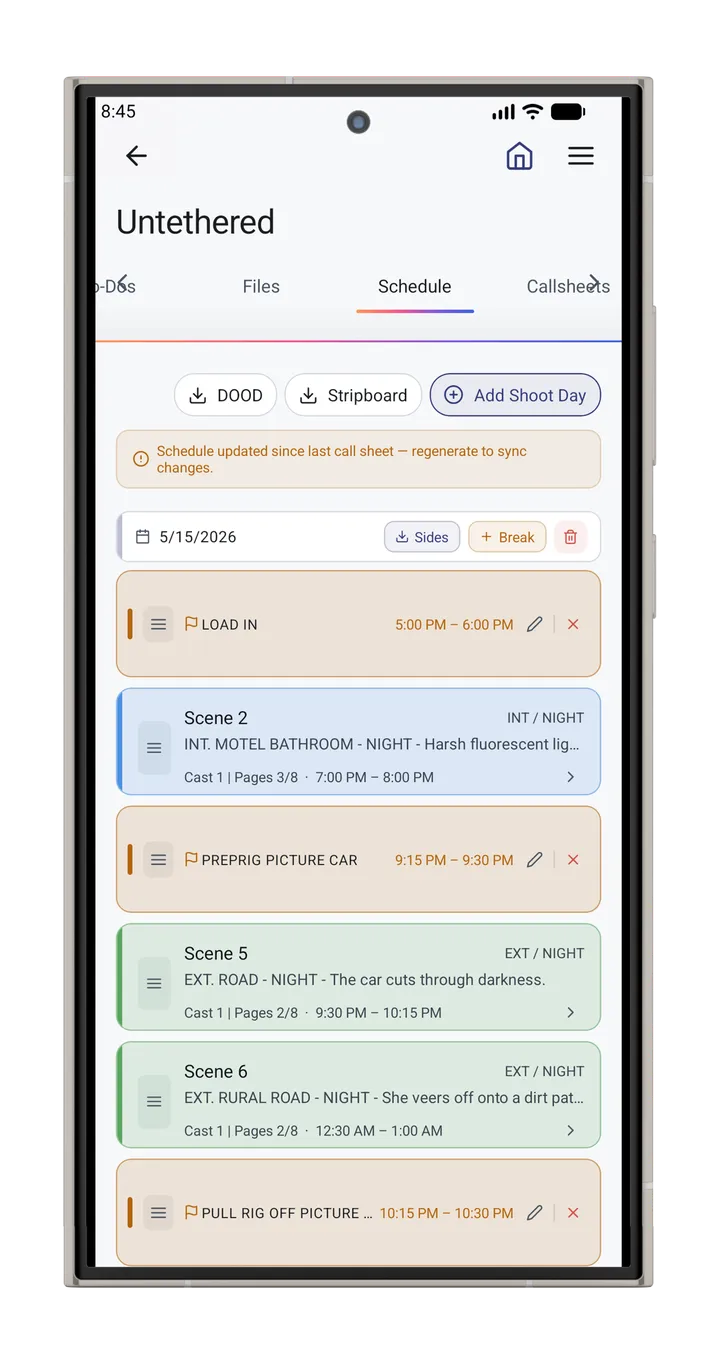
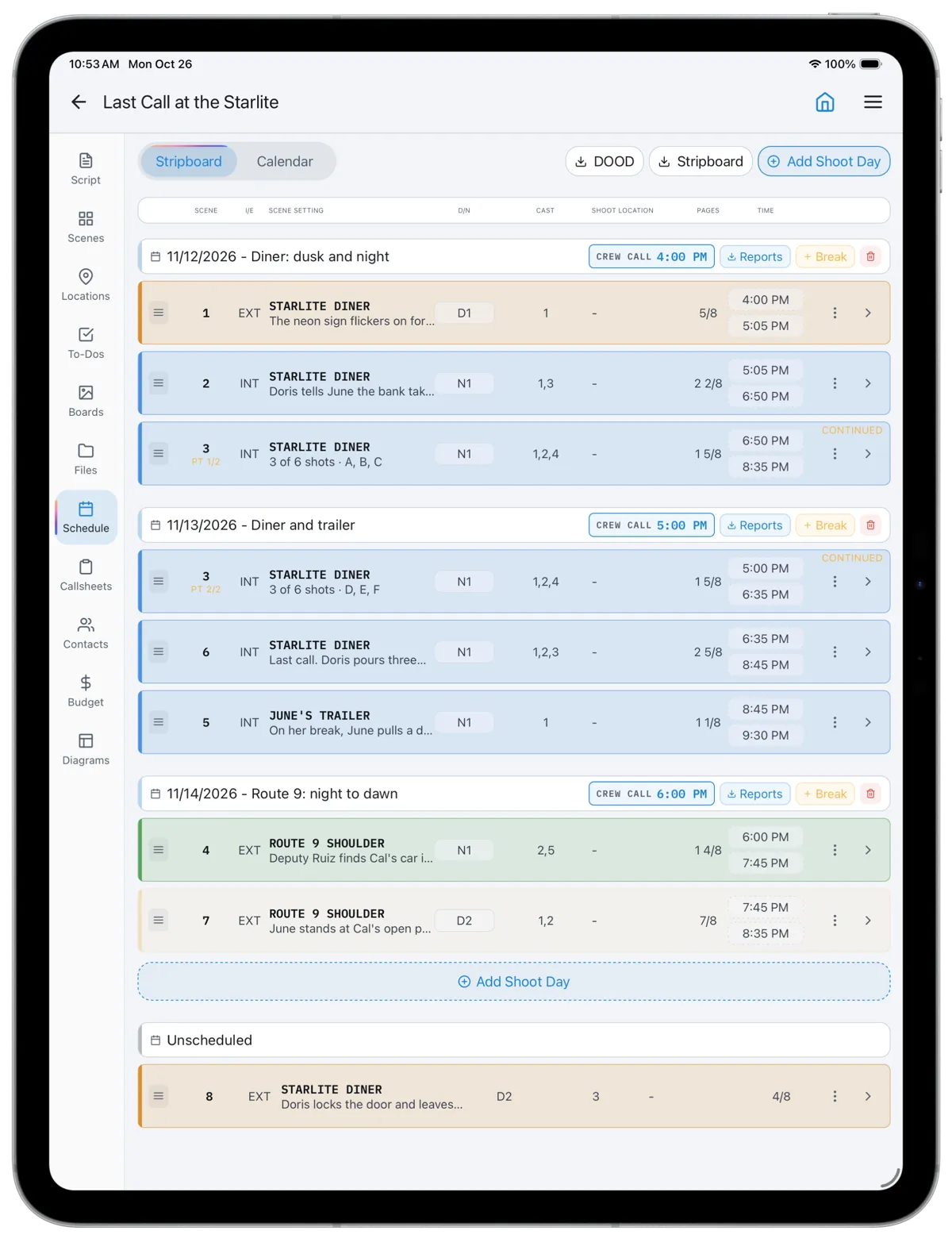
Ask the assistant to group the unscheduled scenes by location, day or night, and cast, and lay them onto shoot days. It will produce a sensible first board. Then move it around with what only you know: company moves, the hours a location is available, cast who can only work certain days, and scenes that are short on the page and long on the day. Strip times follow from each day's crew call, so you can see whether a day is achievable as you adjust it.
Step 6: Draft the Call Sheet
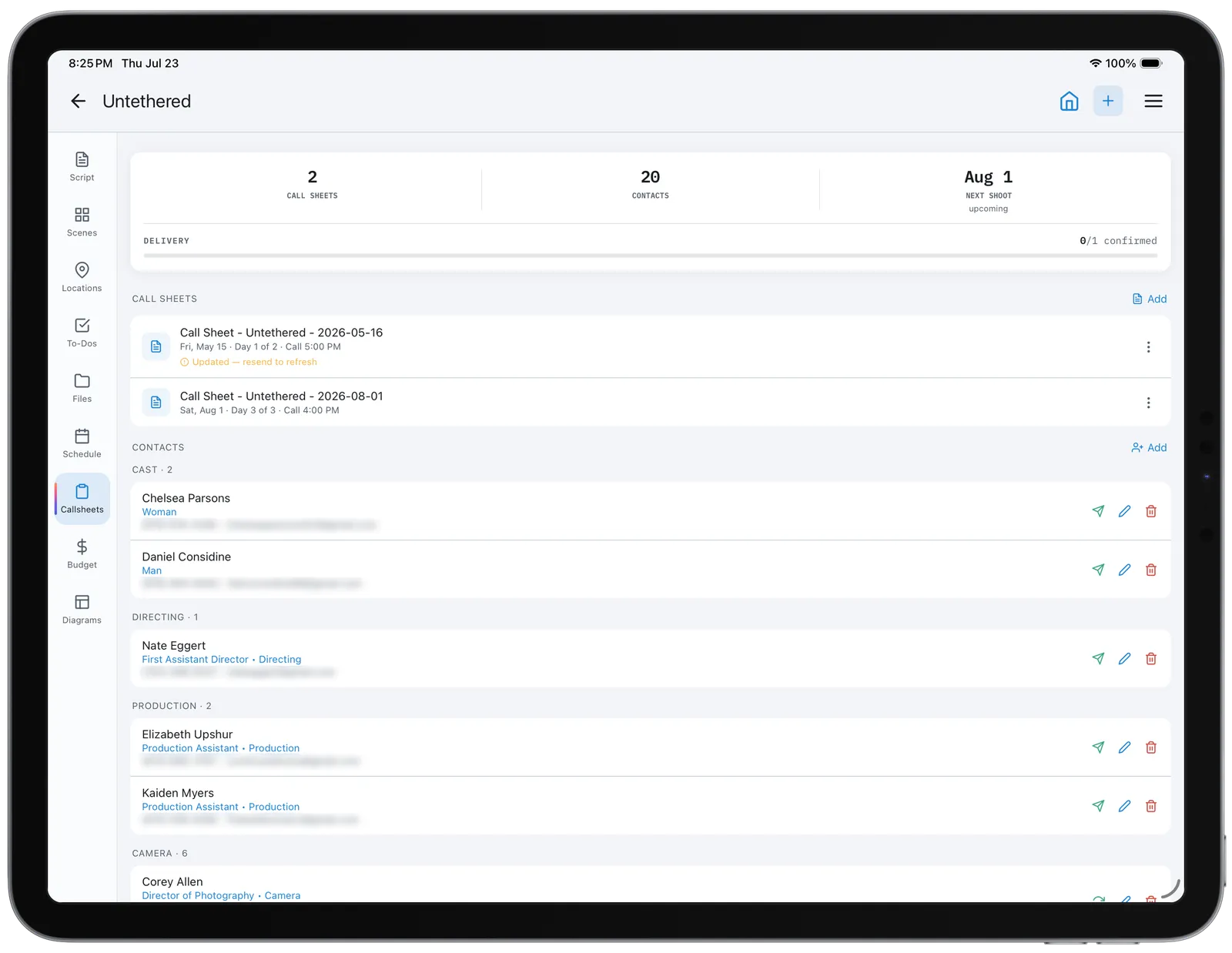
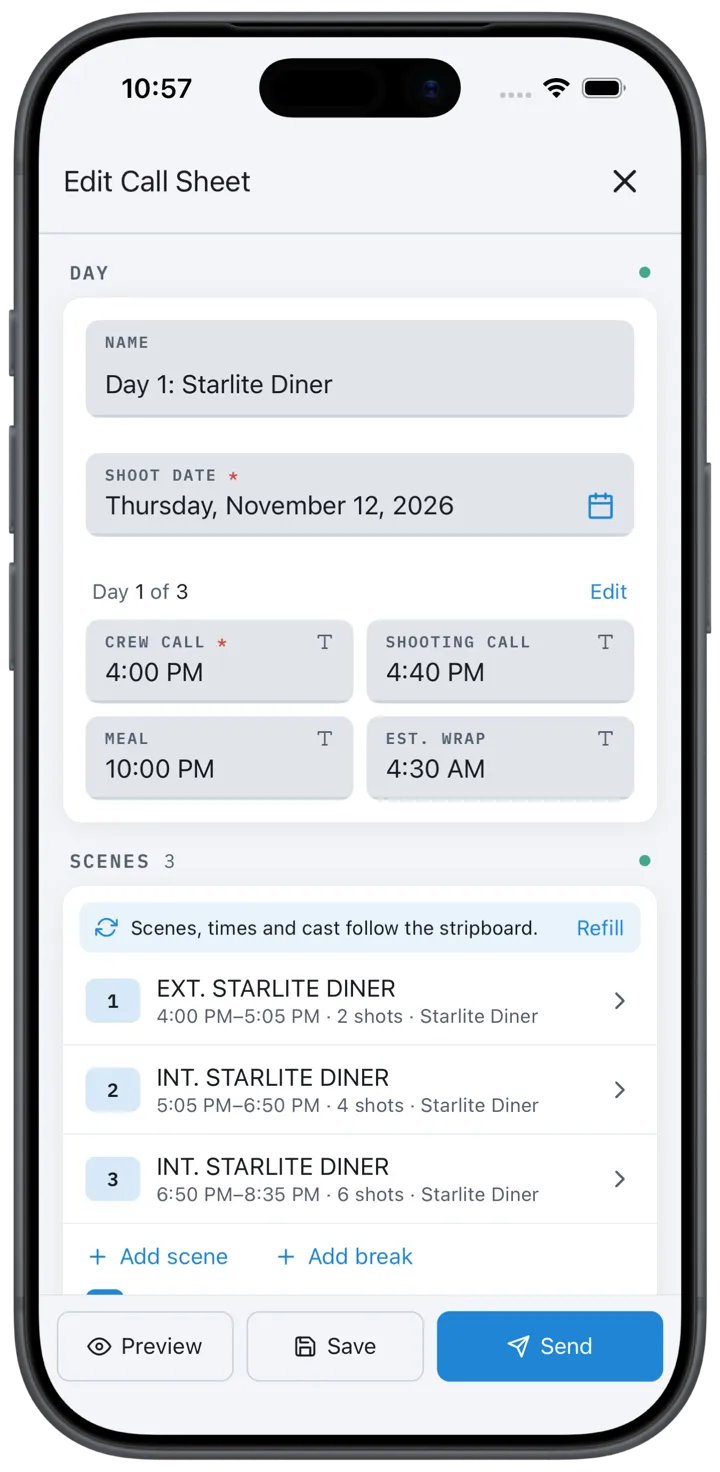
Ask for a call sheet for a shoot day. The assistant drafts it from the stripboard: the day number, crew call, shooting call, meal and wrap, the scenes and the cast they need. It asks for what it cannot know, such as the nearest hospital or a parking note. Review it in CineFlo, preview what each person will receive, and send it yourself. The assistant cannot send call sheets or contact your crew.
Step 7: Track the Day
On set, tell the assistant what you got: "we got 4A and 4B, 4C needs another take, we're dropping 12B". It records the shots, tells you what is left, and whether the day will make it at the current pace. Ask it to move an unfinished scene to another day and the call sheets follow, but whether to drop or carry a scene is your call. For what a script supervisor records on the day, see on-set continuity.
Prompts That Work
Specific requests get usable results. Name the scenes, say what you want back, and say what to leave alone.
| Ask | What you get |
|---|---|
| Break down scenes 1 to 12. Tag cast, props, wardrobe and vehicles. Flag anything the script implies but doesn't name. | A tagged breakdown for those scenes, with a list of implied elements to confirm. |
| We're shooting this handheld on one camera, 35mm and 50mm only. Build coverage for scene 3. | A shot list for the scene, shown for review before it is saved. |
| Put the unscheduled diner scenes on Nov 12 and 13. Keep the dusk exterior first on day 1. | The scenes laid onto those days, with strip times from the crew call. |
| Draft the call sheet for Nov 12. The nearest hospital is Pinecrest Community. | A call sheet with times, scenes and cast from the stripboard, waiting for you to send. |
| What's over budget and what's still uncommitted? | A plain reading of the cost report by account. |
What Stays With You
- Sending anything. Call sheets, invitations and shares go out from CineFlo by a person.
- Contact details. Phone numbers and email addresses are never shared with the assistant.
- The script text, unless you turn on script pages, which is separate from the breakdown.
- Your access settings, per project and per tab, which you can change or revoke at any time.
- The call on deletes. A delete can't be undone, so the assistant asks before removing anything you didn't name.
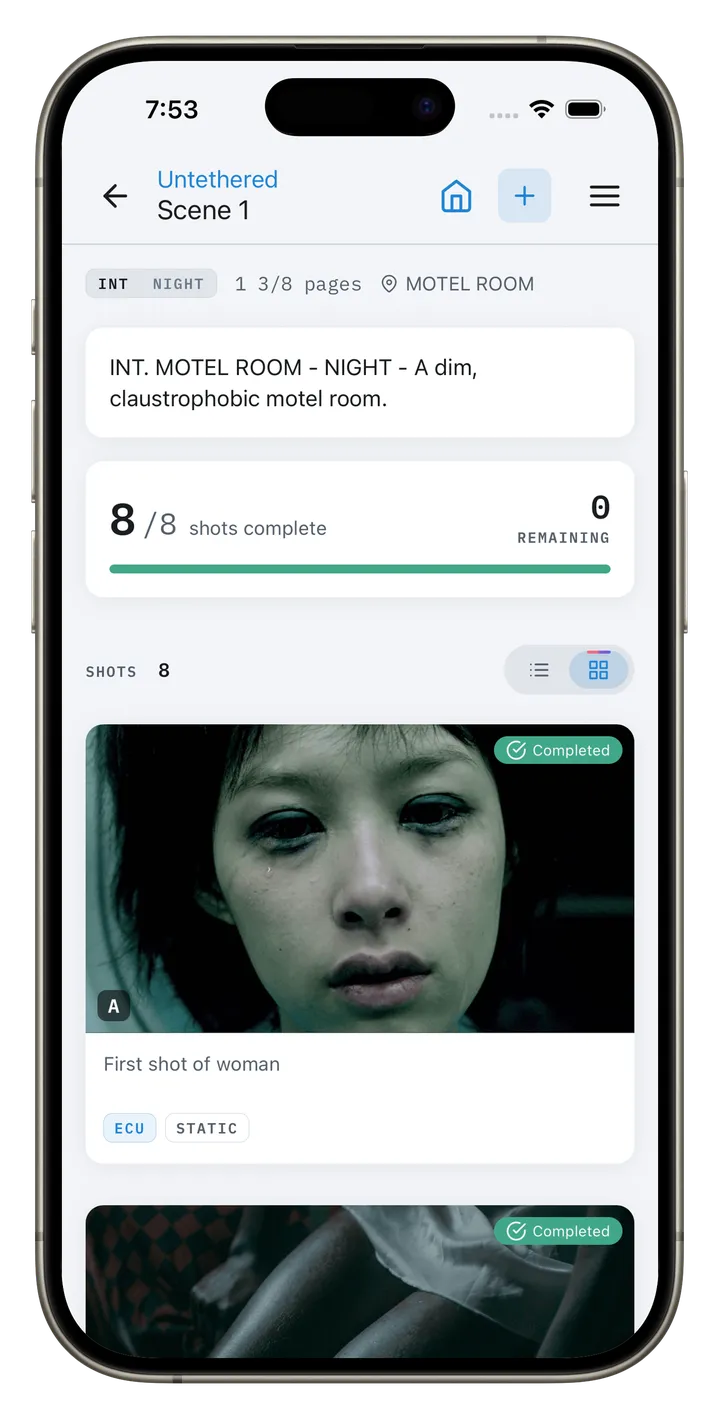
The demo project in the screenshots on this page, "Last Call at the Starlite", was built this way: the cast and crew, scenes, shots, schedule, budget, mood board and the first call sheet were created through Connected Apps, then checked and adjusted in the app.
Terms used here: script breakdown, stripboard, page count (eighths), call time.
Frequently Asked Questions
Can ChatGPT or Claude make a shot list?
Yes. Either can draft a shot list from a scene description, and with a connector to a production app it can save the shots into your project instead of leaving them in the chat. Tell it the coverage style and camera package first, and review the list before you shoot from it.
Can AI do a script breakdown?
It can do a fast first pass that tags cast, props, wardrobe, vehicles and effects scene by scene. It reliably misses implied elements, drifts on character names and confuses props with set dressing, so a person should check the result before it drives a schedule or a budget.
How do I connect Claude or ChatGPT to CineFlo?
Add CineFlo from the Claude Directory or from ChatGPT's plugin directory, sign in to CineFlo, and choose which projects the assistant can use and whether each tab is off, view or edit. Connected Apps is part of CineFlo Pro.
Can the assistant send call sheets or contact my crew?
No. In CineFlo an assistant can draft a call sheet completely, but only a person can send it, invite collaborators or share a project. Contacts' phone numbers and email addresses are never shared with the assistant.
Is it safe to give an AI assistant my script?
In CineFlo the script pages are a separate switch from the breakdown, off unless you turn them on, and the assistant can read scenes but not the title page or change a word. What happens to the text after that depends on your assistant's own data settings, so check those too.
Will AI replace the first AD or the line producer?
No. It speeds up the mechanical parts: tagging, grouping scenes, filling forms and drafting lists. The judgments that decide whether a day works, such as what a scene really needs, what a location allows and what the cast can do, still need someone who has run a set.
Key Takeaways
- Use an assistant for reading, sorting and filling in: breakdowns, coverage drafts, first boards and call sheet drafts.
- Keep the judgment calls with the crew: what a scene really needs, what a location allows and what a day can hold.
- Connect the assistant to the project instead of copying from a chat, so there is one version of every list.
- Start with narrow access and widen it once you trust the results.
- Check AI breakdowns for implied elements, drifting names and props mixed with set dressing.